8 Best Free PDF Editors in 2025
Compare the best free PDF editors for 2025. We tested 20+ tools to find ones that actually edit text, work offline, and respect your privacy.
TL;DR: Most "free" PDF editors limit you to annotations or slap watermarks on exports. After testing 20+ tools, Paperwork stands out as the only editor that's genuinely free, works entirely offline, and never uploads your files to external servers.
What is the Best Free PDF Editor?
The best free PDF editor lets you modify actual text, add signatures, and export without watermarks, all without paying or creating an account. Paperwork meets all these criteria while processing files locally on your device.
Choosing the right PDF editor depends on what you need. Some tools excel at quick annotations while others handle full text editing. The table below compares the top options:
| Editor | Text Editing | Offline | No Watermark | No Account | Privacy |
|---|---|---|---|---|---|
| Paperwork | ✓ | ✓ | ✓ | ✓ | Local only |
| PDFgear | ✓ | ✓ | ✓ | ✓ | Cloud optional |
| Smallpdf | Limited | ✗ | ✓ | ✗ | GDPR compliant |
| PDF-XChange | ✓ | ✓ | Partial | ✓ | Local |
| iLovePDF | Limited | ✗ | ✓ | ✗ | GDPR compliant |
| Sejda | ✓ | ✗ | ✓ | Limited | Cloud-based |
| PDF Candy | Limited | ✗ | ✓ | ✓ | Cloud-based |
| Apple Preview | Annotations | ✓ | ✓ | ✓ | Local |
1. Paperwork
Best Overall Free PDF Editor
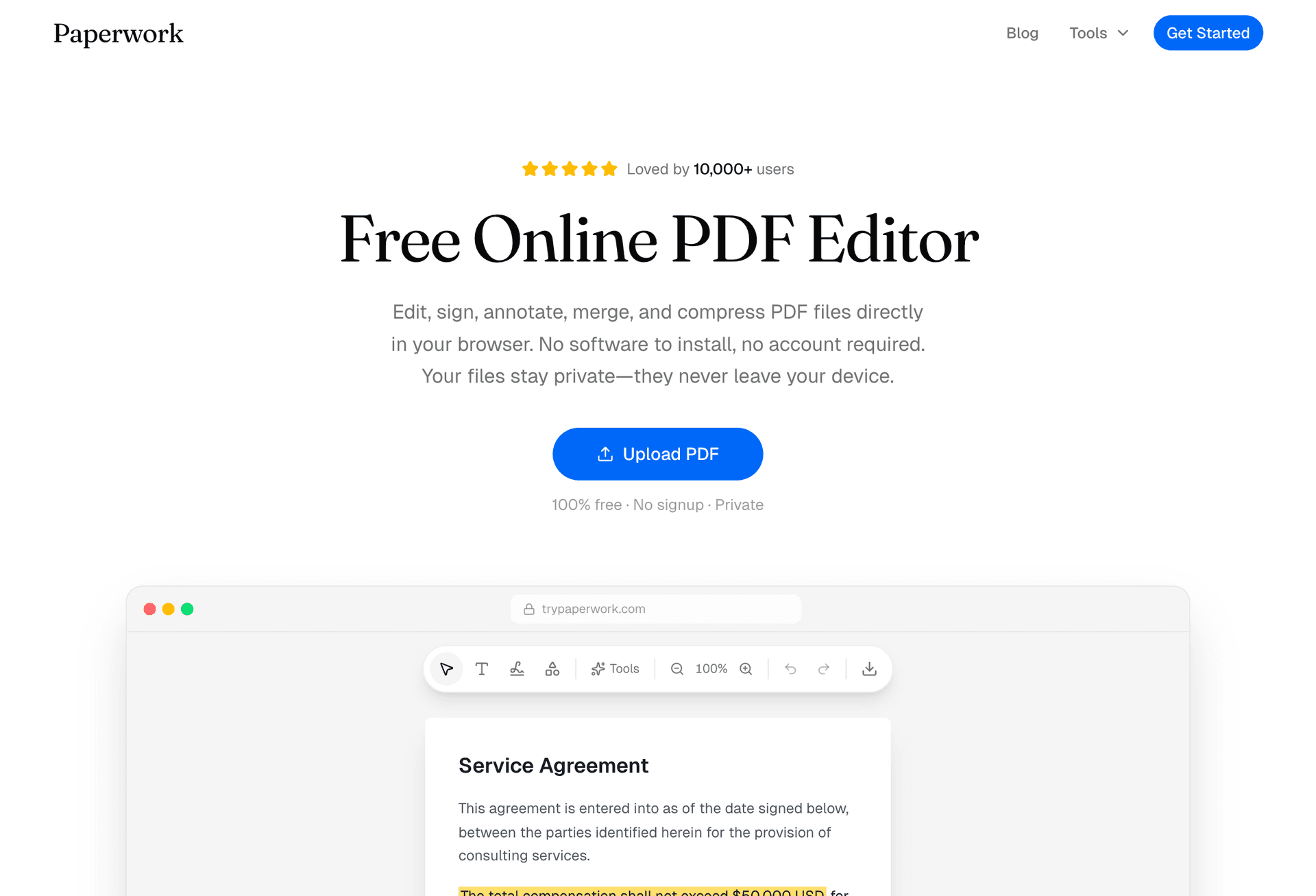
Paperwork is a browser-based PDF editor that processes everything locally on your device. Your files never leave your computer, making it the most privacy-focused option available.
Features:
- Full text editing
- Electronic signatures
- Annotations
- Form filling
- Merge and split
- Compression
Unlike cloud-based editors, Paperwork runs entirely in your browser using JavaScript and WebAssembly. This means:
- No file uploads to external servers
- Works offline after initial page load
- No account creation required
- No daily limits or task restrictions
- No watermarks on any exports
Best for: Anyone who values privacy or works with sensitive documents like legal contracts, financial records, medical forms, or confidential business files.
Platforms: Any modern browser (Chrome, Firefox, Safari, Edge) on Windows, Mac, Linux, iOS, Android
2. PDFgear
Best Desktop Alternative
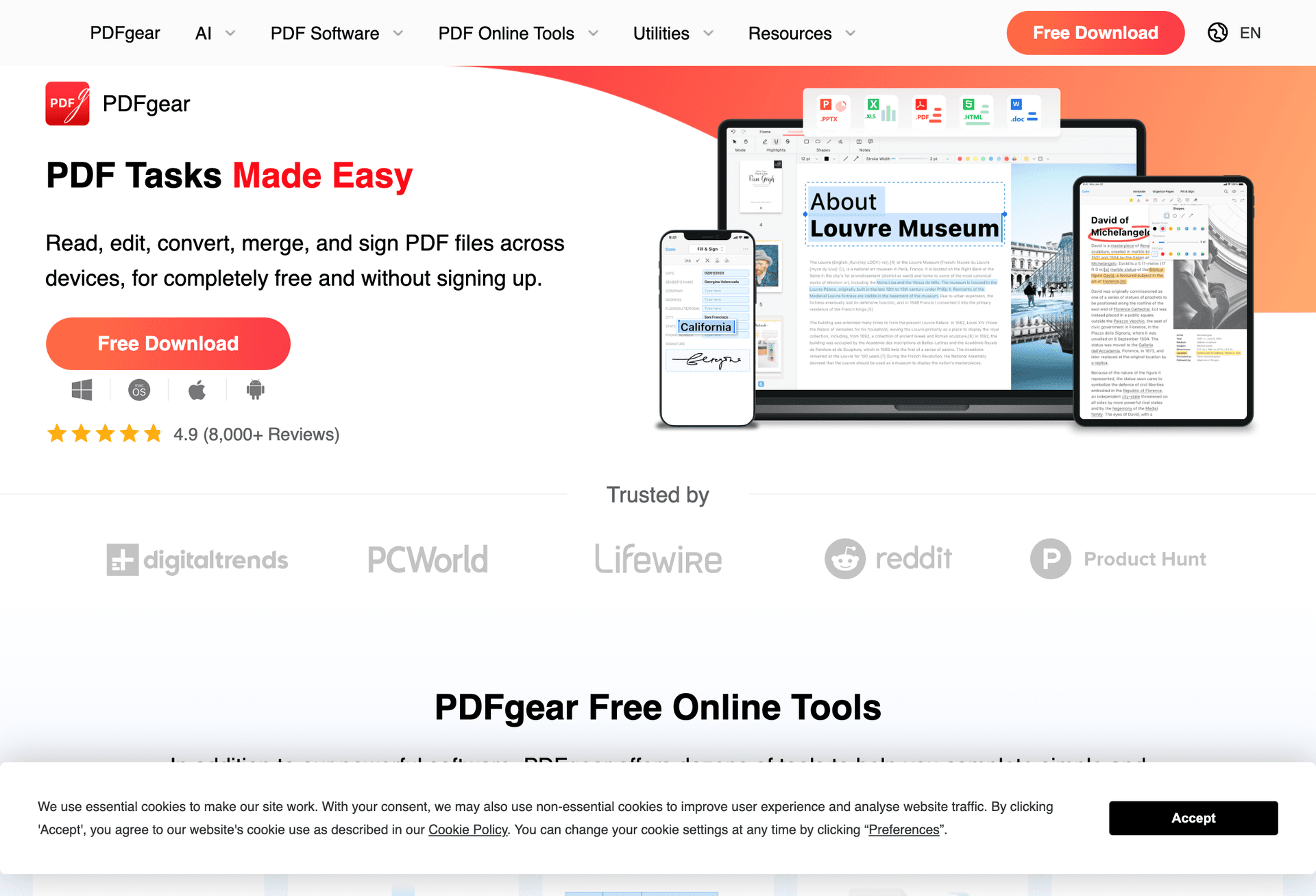
PDFgear offers a full-featured desktop application that rivals paid software like Adobe Acrobat. The free version includes features typically locked behind paywalls, and Reddit users have taken notice, calling it "single-handedly the best free PDF editor there is."
Features:
- Complete text and image editing
- Built-in AI assistant (powered by ChatGPT)
- OCR for scanned documents
- Batch processing
- PDF to Word/Excel conversion
What users say:
On Trustpilot, PDFgear holds a 5-star rating from over 9,000 reviews. Reddit users frequently recommend it for editing actual PDF text without watermarks, something most free tools don't allow. One user noted: "Moving away from Adobe products has been easier than I thought it would be."
The catch:
PDFgear is genuinely free today, but the company has indicated that some advanced features (particularly AI-powered tools requiring cloud computing) may become paid options in the future. For now, everything works without restrictions.
Limitations:
- Requires ~200MB installation
- AI features need internet connection
- OCR accuracy can vary with low-quality scans
- Occasional formatting issues with complex PDFs
Best for: Users who prefer native desktop applications and need advanced features like OCR or AI-powered tools.
Platforms: Windows, macOS
3. Smallpdf
Best for Quick Tasks
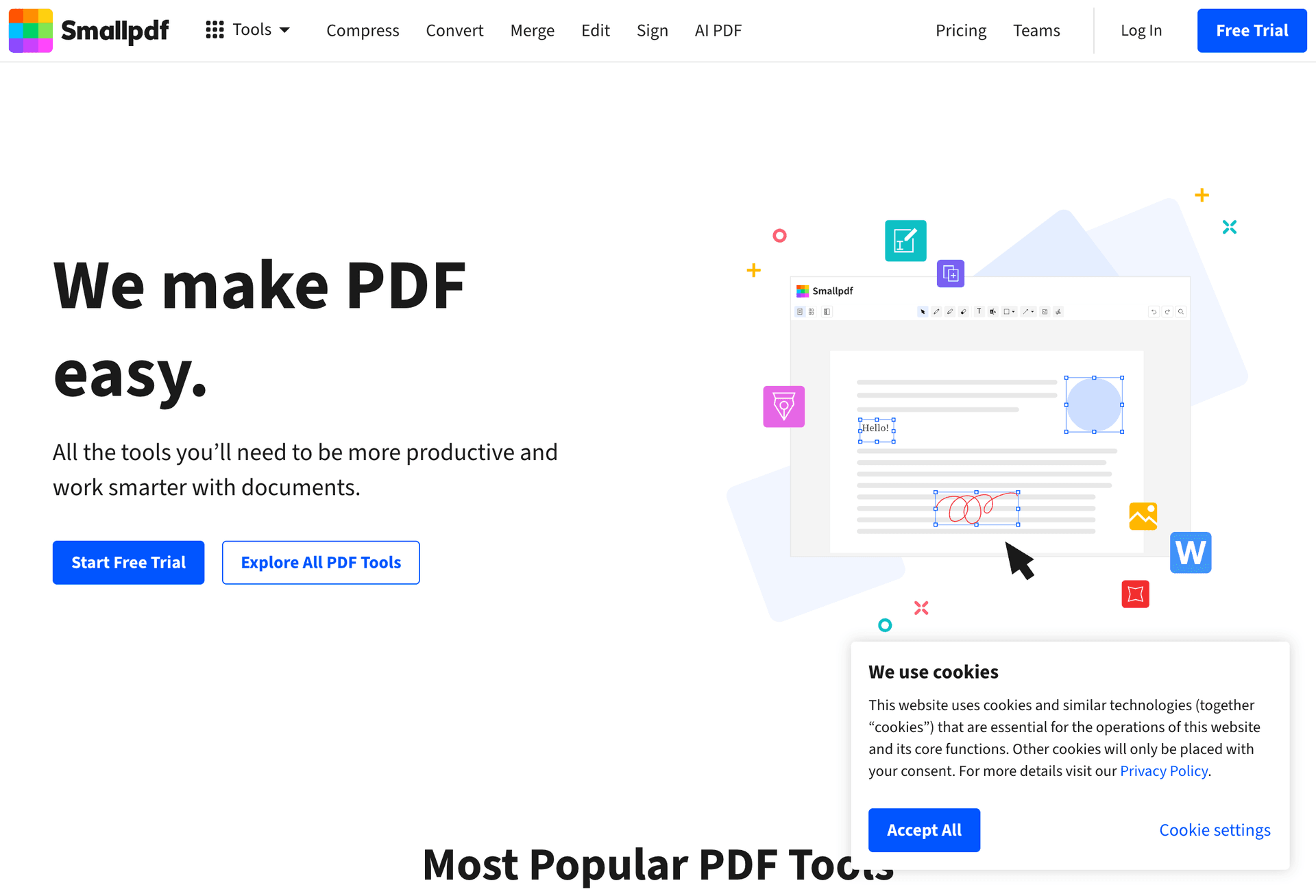
Smallpdf provides over 30 PDF tools through a clean web interface. It's polished and intuitive, but the free tier has strict limitations that frustrate frequent users.
Features:
- Intuitive drag-and-drop interface
- PDF compression and conversion
- Basic text and image editing
- E-signature support
- Cloud storage integration
- AI-powered tools (4 documents/30 prompts per day)
The free tier reality:
You get two tasks per day. That's it. Edit a PDF in the morning, and you can't touch another until tomorrow. Users report: "If you need to correct an error or update a PDF you edited an hour earlier, you can't. You hit a paywall." The 5GB file size limit is generous, but the daily cap is the real bottleneck.
What users say:
Smallpdf excels at compression. Users praise it for shrinking files "from 50MB to 5MB" quickly. But the consensus is clear: it's designed to convert free users into paying subscribers ($10-15/month).
Limitations:
- Two free tasks per day (the biggest complaint)
- Files uploaded to Smallpdf servers
- Full editing requires Pro subscription
- Some features need an account
Best for: Occasional users who need one or two quick PDF modifications per day and don't mind cloud processing.
Platforms: Web, iOS, Android, Chrome extension
4. PDF-XChange Editor
Best for Windows Power Users
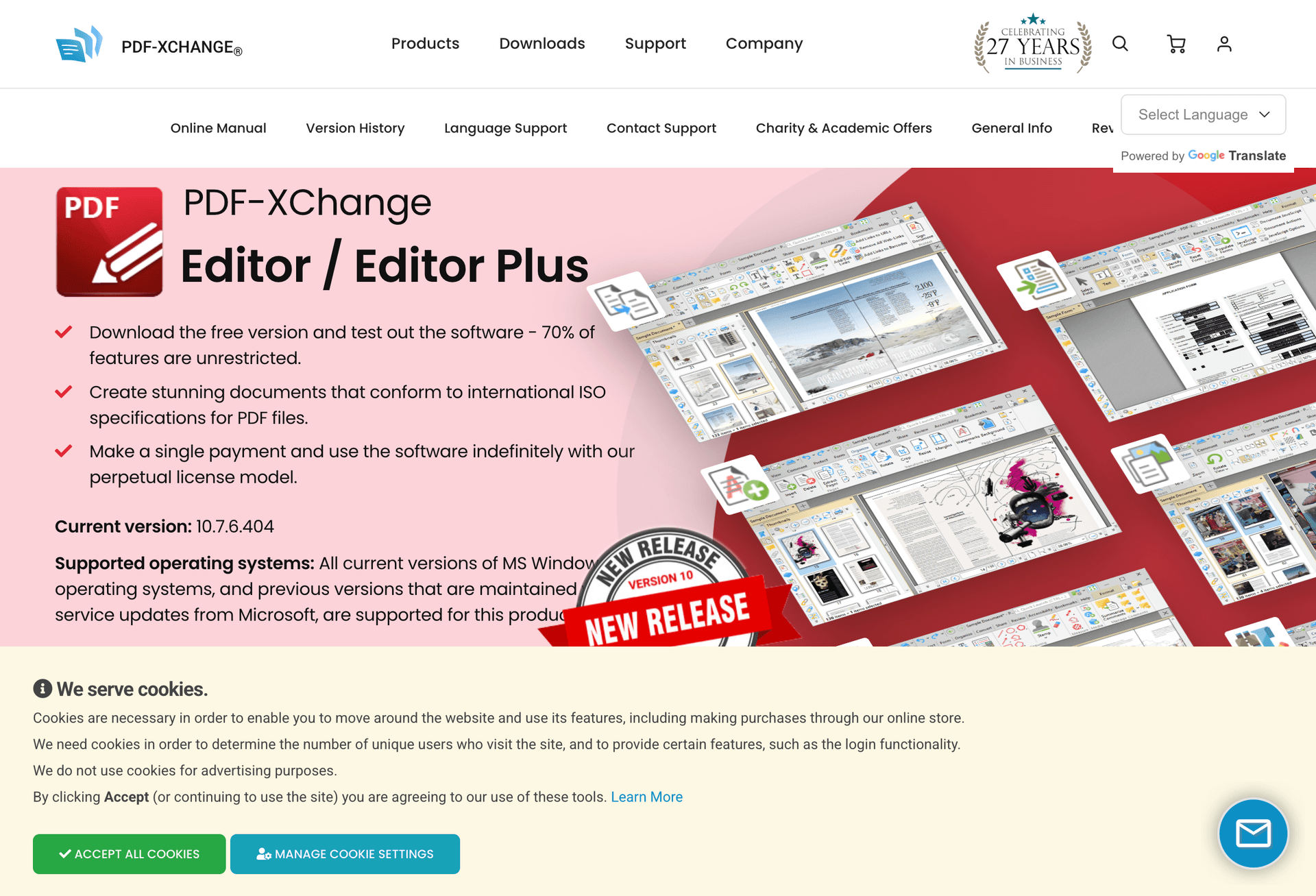
PDF-XChange Editor has been the "hidden champion" for Windows users for years. It's what power users recommend when someone asks for an Adobe Acrobat alternative. 70% of features are free, and it runs lighter than most competitors.
Features:
- Advanced text editing
- Extensive annotation tools
- OCR (multi-language)
- JavaScript support
- Audio comments
- Stamps and hyperlinks
- Auto-highlighting of fillable fields
- Native support for viewing Microsoft Office files
What users say:
Reddit users consistently recommend it: "I use PDF-XChange Editor to do the searching for words and phrases." Another noted: "It does almost all the things that Adobe Acrobat does, but it's way cheaper and doesn't force you into a subscription." The OCR engine is praised as "highly accurate" with output quality that "consistently surpasses other PDF editors."
The watermark situation:
Here's the nuance most reviews miss: viewing, annotating, and filling forms is completely free without watermarks. But if you use advanced features like creating new PDFs from scratch, watermarks appear. The $56 one-time license (not subscription) removes all restrictions.
Limitations:
- Windows only (no Mac version)
- Interface looks dated (Windows 7 era)
- Steep learning curve due to feature density
- Watermarks on some advanced features in free version
Best for: Windows power users who need professional-grade features, don't mind a learning curve, and want a perpetual license option instead of subscriptions.
Platforms: Windows only
5. iLovePDF
Best for Batch Operations
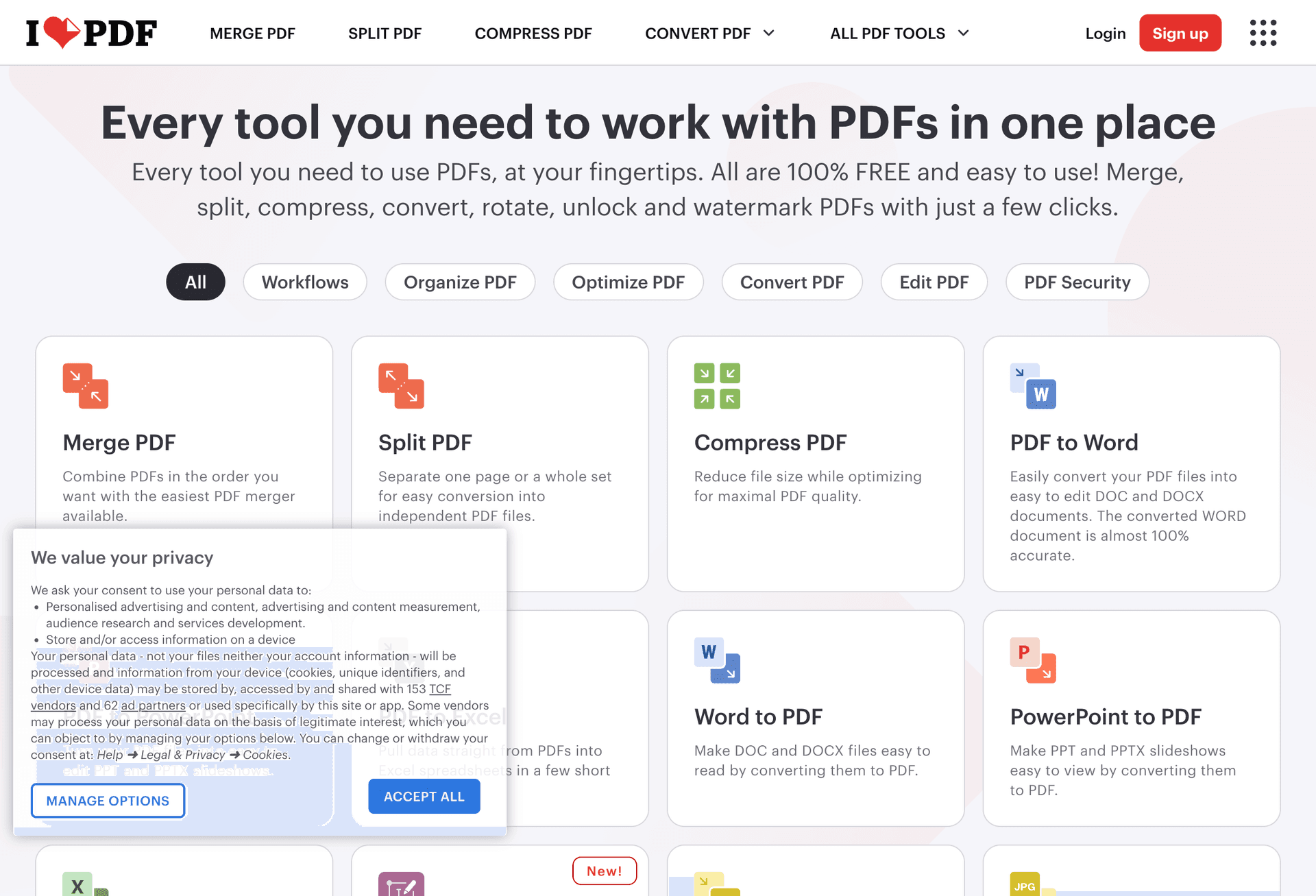
iLovePDF excels at processing multiple files simultaneously. With 10,000+ Trustpilot reviews and a 5-star rating, it's one of the most popular online PDF tools. But dig deeper and you'll find important caveats.
Features:
- Batch merge, split, and compress
- PDF to Office conversion
- Page organization tools
- Basic editing and annotations
- API access for developers
- GDPR-compliant processing
What users love:
Compression is the killer feature. Reddit users report it "will often compress from 50MB to 5MB" and it's "fast and free." No registration required for basic tasks, and the interface is genuinely intuitive for quick jobs.
What users don't mention:
Files processed through iLovePDF show "iLovePDF" as the author in the PDF metadata. This can raise questions about file authenticity if you're submitting documents for verification. Also, there's no direct text editing. You can annotate, but not modify existing text without additional tools.
Privacy consideration:
Your files are uploaded to iLovePDF servers for processing. They claim GDPR compliance and secure encrypted transmission, but if you're working with sensitive documents (legal, medical, financial), an offline tool might be safer.
Limitations:
- Limited free tasks per day
- Files processed on external servers
- Advanced features (OCR, batch processing, larger files) require subscription
- No true text editing capability
Best for: Users who frequently work with multiple PDFs for merging, splitting, and compression, and don't need to edit existing text.
Platforms: Web, Windows, macOS, iOS, Android
6. Sejda
Best for Occasional Editing
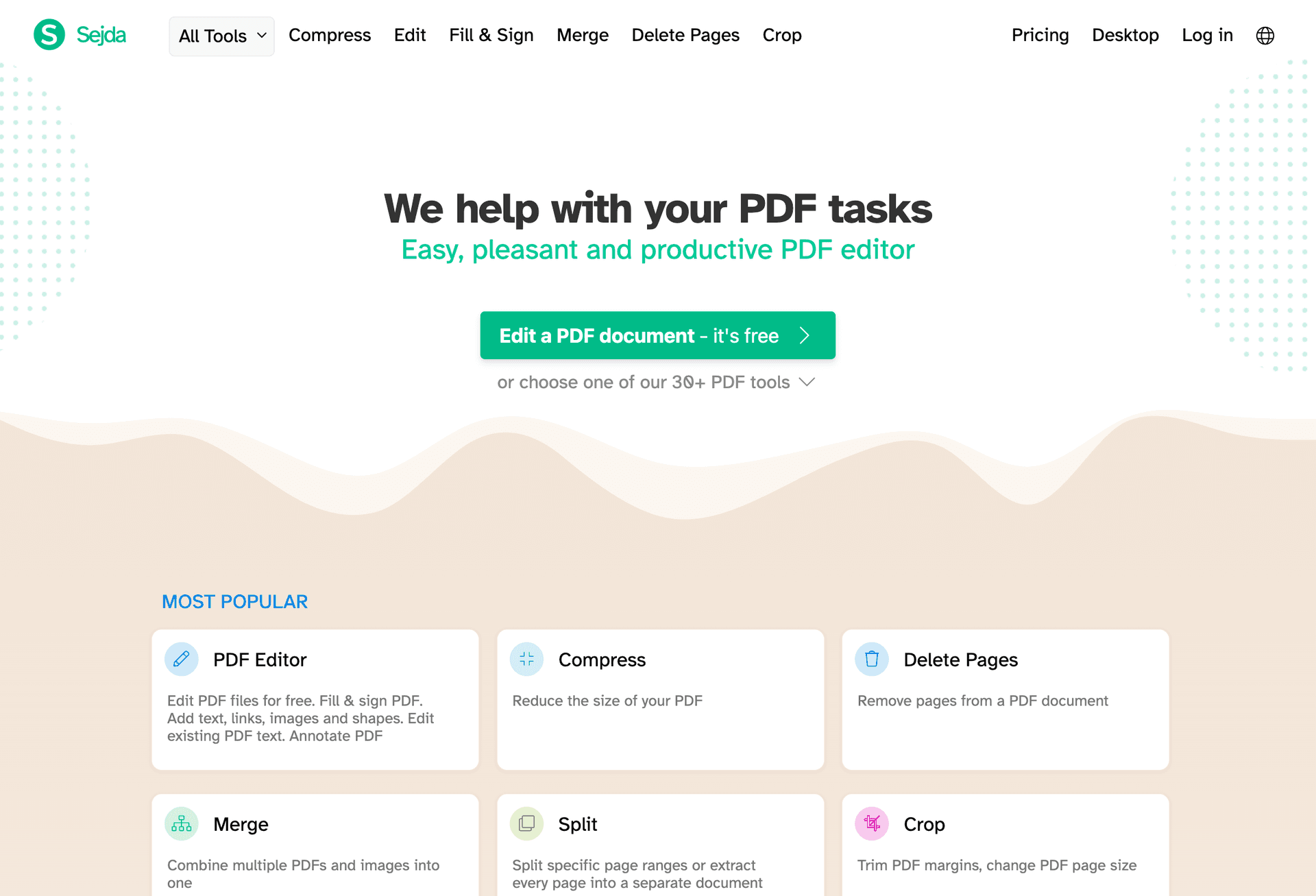
Sejda is a polished PDF editor that offers true text editing, not just overlays. Users praise it as "the best software of this type I've encountered" for its appropriate learning curve. But the free tier limitations are frustrating by design.
Features:
- True text editing (modify existing text)
- Form filling and creation
- Digital signatures
- Merge, split, compress tools
- No watermarks in free tier
- Desktop version for offline use
The frustration factor:
Sejda gives you access to all tools, then limits you to 3 tasks per hour (online) or 3 per day (desktop), with 50MB and 200-page file limits. Users report: "I would work for 30 min over a PDF just to find out in the end that I am limited because of using the free version and if I want to get my PDF I need to pay."
Text editing reality check:
While Sejda offers actual text editing, it's not seamless. "The layout is fixed, and you can only select one line at a time. If your needs are simple, like fixing a typo, this is fine, but should you have to rewrite an entire section, this becomes a bit of a nightmare."
Pro tip: Teachers can unlock premium features for free by verifying with a school email address.
Limitations:
- 3 tasks per hour (online) or 3 per day (desktop)
- 50MB file size limit
- 200-page limit
- Files deleted after 2 hours
- Line-by-line text editing only
Best for: Users who need occasional PDF edits, can work within the hourly limits, and prefer a clean interface over feature overload.
Platforms: Web, Windows, macOS, Linux
7. PDF Candy
Best Simple Web Tool
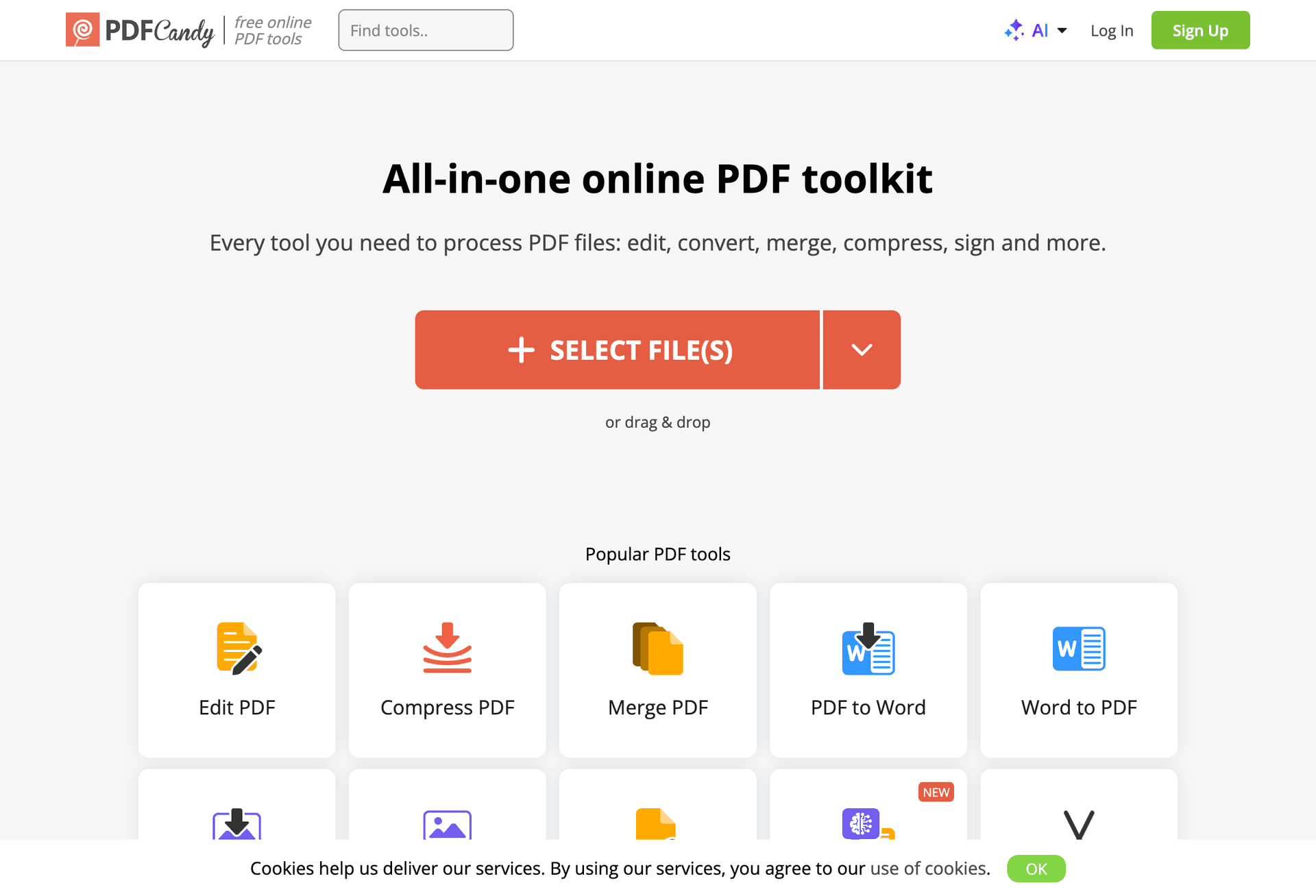
PDF Candy offers an impressive 47+ PDF tools through a clean interface. Developed by the Icecream Apps team since 2016, it's processed over 7.5 billion files. The free tier is generous for casual users, but buyer beware on the paid plans.
Features:
- No account required for basic tasks
- Clean drag-and-drop interface
- PDF to multiple format conversion
- OCR capability
- AI tools (summarize, rewrite, translate)
- Cloud storage integration (Dropbox, Google Drive)
What works well:
"Using PDF Candy is child's play." The interface is genuinely simple. The AI summarizer works well on long paragraphs, and compression is effective. Customer support gets praise for quick responses.
What doesn't work:
Testing revealed users "were able to easily make edits in text, but it failed to edit images and links." The tool offers "basic level editing functionality" only. More concerning: some users purchased the "lifetime" license only to find it's limited to two reactivations total. After that, your "lifetime" license is locked.
Desktop vs. Web confusion:
The desktop version doesn't support several features available online, including "Edit PDF," "Rearrange pages," "Add watermark," and "Page numbers." If you need these, stick to the web version.
Limitations:
- One task per hour (free tier)
- Basic editing only (no image/link editing)
- Desktop version has fewer features than web
- "Lifetime" licenses have hidden reactivation limits
Best for: Users who need a simple, one-off PDF task and don't want to create an account or install software.
Platforms: Web, Windows (limited features)
8. Apple Preview
Best Built-in Mac Option
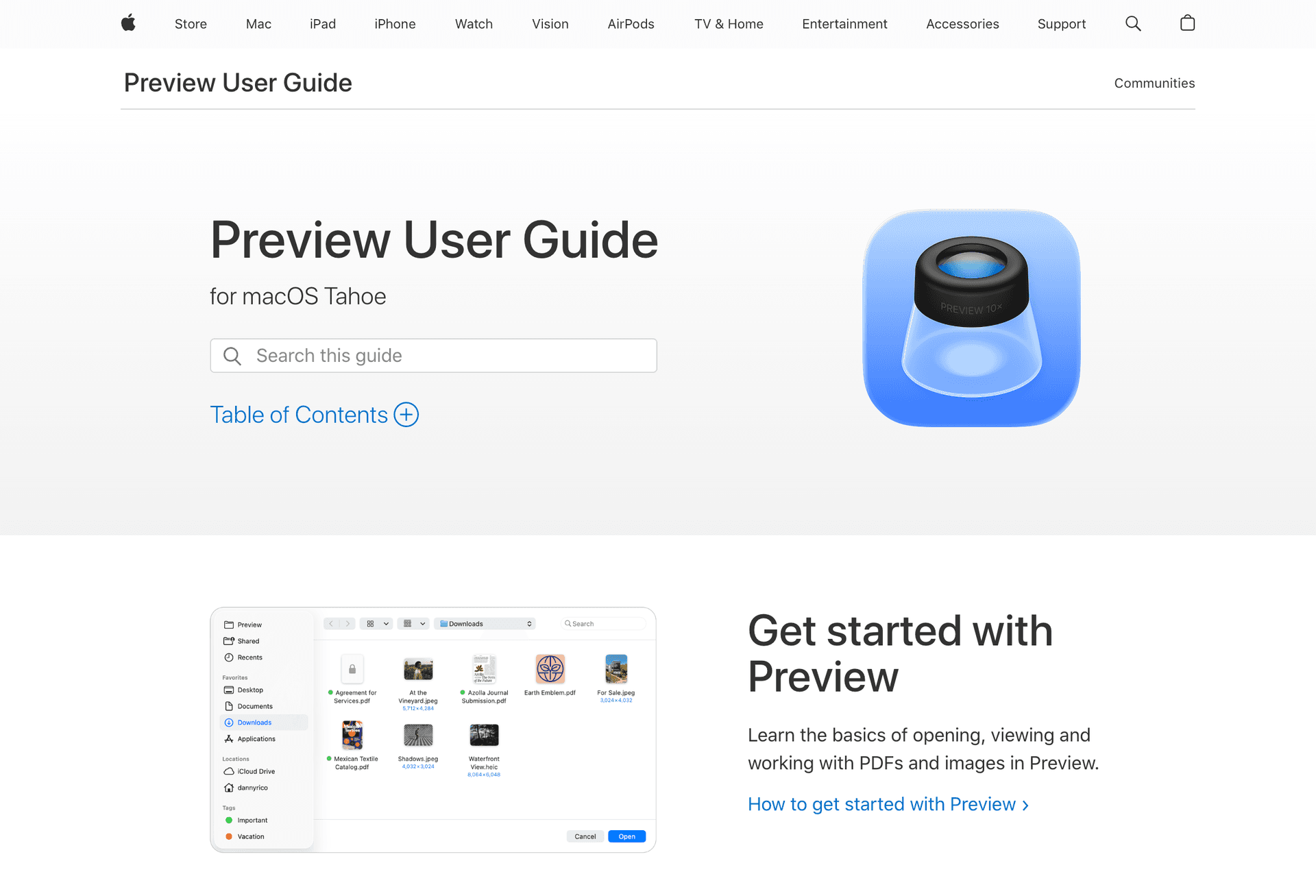
Preview comes pre-installed on every Mac and handles basic PDF tasks without additional software. It's convenient for quick annotations, but don't expect actual editing capabilities.
Features:
- Annotations and markup tools
- Form filling capability
- Signature capture and insertion
- Page reordering and deletion
- PDF merge through Finder
- Basic compression and encryption
The annotation-only reality:
Preview can read, split, merge, highlight, annotate, encrypt, compress, and export PDFs. But it cannot edit existing text or images. As Apple's own documentation confirms, you can only add new elements on top of the PDF, not modify the original content. Users looking to change existing text need a different tool.
Known quirks:
Some users report the highlight tool occasionally gets "stuck" and continues highlighting when you don't want it to. Preview also won't accept pasted images or drag-and-drop in some contexts, which can be frustrating for users expecting standard Mac behavior.
What it handles well:
For what it does, Preview is fast and reliable. Filling forms, adding signatures, and reorganizing pages works smoothly. The merge function (drag thumbnails between documents in sidebar view) is surprisingly intuitive once you know it exists.
Limitations:
- Mac and iOS only
- No true text editing capability
- Cannot modify existing content
- Doesn't support editing scanned PDFs
- Occasional highlight tool bugs
Best for: Mac users who need quick annotations, form filling, or document organization, and don't require actual text editing.
Platforms: macOS, iOS (via Files app)
How to Edit a PDF for Free
Follow these steps to edit any PDF without paying for software:
Using Paperwork (recommended):
- Open Paperwork's PDF editor in your browser
- Drag and drop your PDF file onto the page
- Click anywhere to add text, or select existing elements to modify
- Use the toolbar for signatures, highlights, and shapes
- Click "Download" to save your edited PDF
Your file stays on your device throughout. Nothing gets uploaded to external servers.
Tips for better results:
- Flatten before sharing: This permanently applies your edits
- Use high-contrast colors: Makes annotations easier to read
- Save incrementally: Download versions as you work on complex edits
How to Choose a Free PDF Editor
Consider your privacy needs.
Cloud-based editors upload your files for processing. If you work with sensitive documents, choose an editor that processes files locally:
- Local processing: Paperwork, PDF-XChange, Apple Preview
- Cloud processing: Smallpdf, iLovePDF, Sejda, PDF Candy
Check the real limitations.
"Free" often comes with strings attached:
- Daily/hourly limits: Smallpdf (2/day), PDF Candy (1/hour), Sejda (3/hour)
- Watermarks: PDF-XChange adds watermarks to advanced features
- Account required: Smallpdf requires signup for some features
- Feature restrictions: Most limit text editing to paid tiers
Match features to your needs:
| If you need... | Best choice |
|---|---|
| Privacy-first editing | Paperwork |
| Desktop software | PDFgear or PDF-XChange |
| Quick web tasks | Smallpdf or PDF Candy |
| Batch processing | iLovePDF |
| Mac built-in option | Apple Preview |
Is There a Completely Free PDF Editor?
Yes. Paperwork is completely free with no premium tier, no watermarks, no daily limits, and no account required. Unlike most "free" editors that restrict features or add watermarks, Paperwork offers full functionality at no cost.
The trade-off for most free editors involves one of these:
- Feature restrictions: Basic tools free, advanced features paid
- Usage limits: Limited tasks per day or hour
- Watermarks: Free exports include branding
- Privacy concerns: Files uploaded to external servers
Paperwork avoids all four by processing everything locally in your browser. There's no server infrastructure to monetize, so there's no need to limit the free tier.
Does Windows Have a Free PDF Editor?
Windows doesn't include a built-in PDF editor, but Microsoft Edge can annotate PDFs. For full editing capabilities, you'll need third-party software.
Free options for Windows:
- Paperwork: Works in any browser, no installation needed
- PDFgear: Full-featured desktop application
- PDF-XChange Editor: Advanced features for power users
- LibreOffice Draw: Open-source option with PDF editing
For quick edits without installing software, browser-based tools like Paperwork offer the fastest path from opening to editing.
FAQ
Can I edit a PDF without Adobe?
Yes. Adobe Acrobat is not required for PDF editing. Free alternatives like Paperwork offer comparable editing features for common tasks: adding text, signatures, annotations, and filling forms.
Which free PDF editor has no watermark?
Paperwork, Smallpdf, Sejda, and iLovePDF export PDFs without watermarks in their free tiers. PDF-XChange Editor adds watermarks when using certain advanced features.
Are online PDF editors safe?
Safety depends on the specific tool. Cloud-based editors upload your files to external servers for processing. For sensitive documents, use editors that process files locally, like Paperwork, which never uploads your files anywhere.
Can I edit text in a PDF for free?
Yes, though many free editors only allow annotations (adding new text) rather than modifying existing text. Paperwork, PDFgear, and Sejda offer true text editing in their free versions.
What's the difference between PDF annotation and editing?
Annotation adds new elements on top of the PDF (highlights, comments, text boxes). Editing modifies the original content: changing existing text, moving elements, or deleting sections.
Do free PDF editors work on Mac?
Yes. Browser-based editors like Paperwork work on any Mac with a modern browser. For native apps, PDFgear offers a macOS version, and Apple Preview handles basic annotations.
How do I sign a PDF for free?
Open your PDF in Paperwork's signature tool, draw or type your signature, position it on the document, and download. Your signature saves locally for future documents.
Can I merge PDFs for free?
Yes. Most free PDF editors include merge functionality. Paperwork's merge tool combines unlimited PDFs without file size restrictions or watermarks.
Conclusion
After testing dozens of PDF editors, Paperwork emerges as the top free option for users who value privacy and need genuine editing capabilities without restrictions.
For those who prefer desktop software, PDFgear offers the most complete free package. Smallpdf and iLovePDF work well for occasional quick tasks, though their daily limits and cloud processing may not suit everyone.
The key differentiator remains privacy: if your documents contain sensitive information, choose an editor that processes files locally rather than uploading them to external servers.
Ready to edit your PDF? Open Paperwork and start editing in seconds. No signup, no uploads, no limits.